
Page Editor: Editing Text and Images
After you login, on the dashboard, click the “Home” button
Cornerstone will open
Click on the text you want to edit, then on the left type in your text
Click SAVE on the bottom
To add an Image, click on an existing image or an empty image block
On the left click the “+” under the “SRC” box
The media screen will open
Drag and drop an image from your computer to the Media screen
Click “Insert into Post”
Click SAVE
Calendar-v2
Update Status of Appointment
Click on the Pending Link in the email and you will land on the pending appointment screen
Click the box to the left of the Appointment
From the Drop down select the status desired, e.g. “Confirmed”
Click “Change Status” button
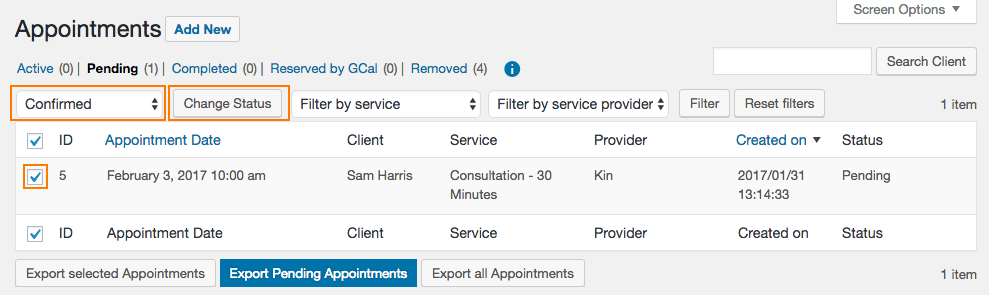
This will auto generate an email to both you and the client for any of the selected “status changes”
Calendar-v2
Blocking Dates
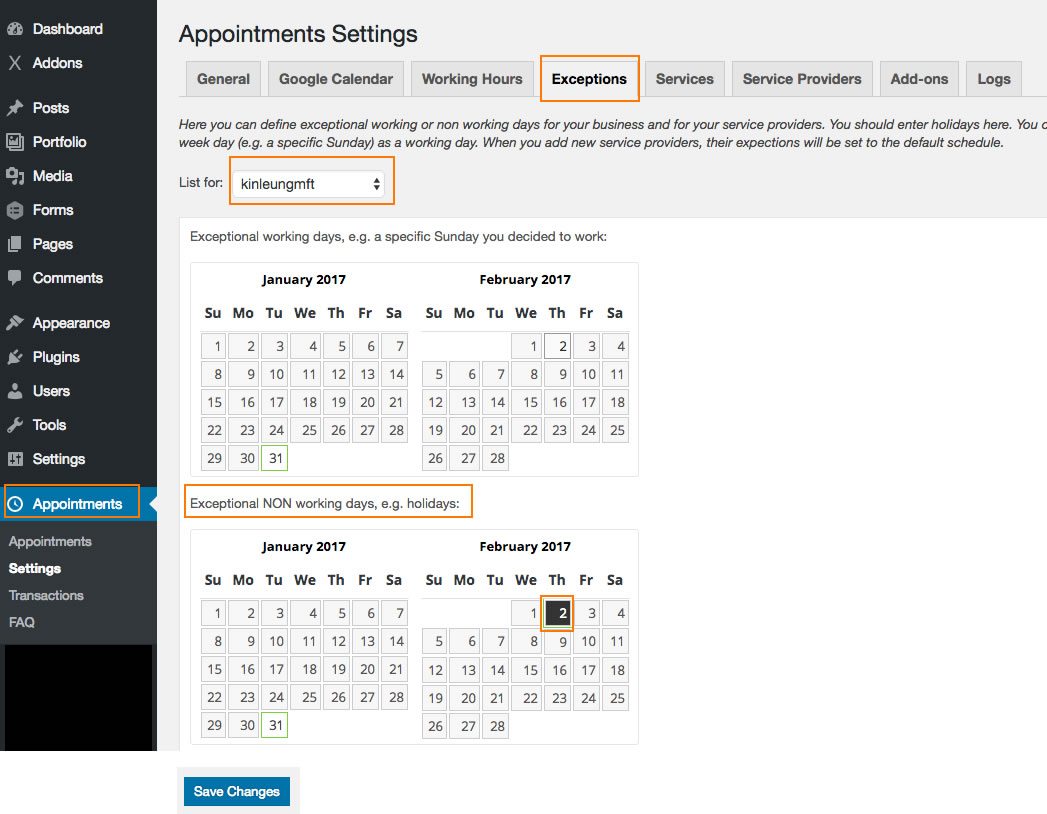
Click “Appointments”
Click “Settings”
Click “Exceptions”
Under “Exceptional NON working days, e.g. holidays:”
Click the DATE you want to block from your calendar, it will turn black
Click “SAVE CHANGES” button
Removing Blocked Dates
Return to the exception screen
Click on the date that you previously “blocked” (which is in Black) and this will toggle the date back to Gray, click the “Save Changes” button.
Calendar-v2
Blocking Hours on specific Dates
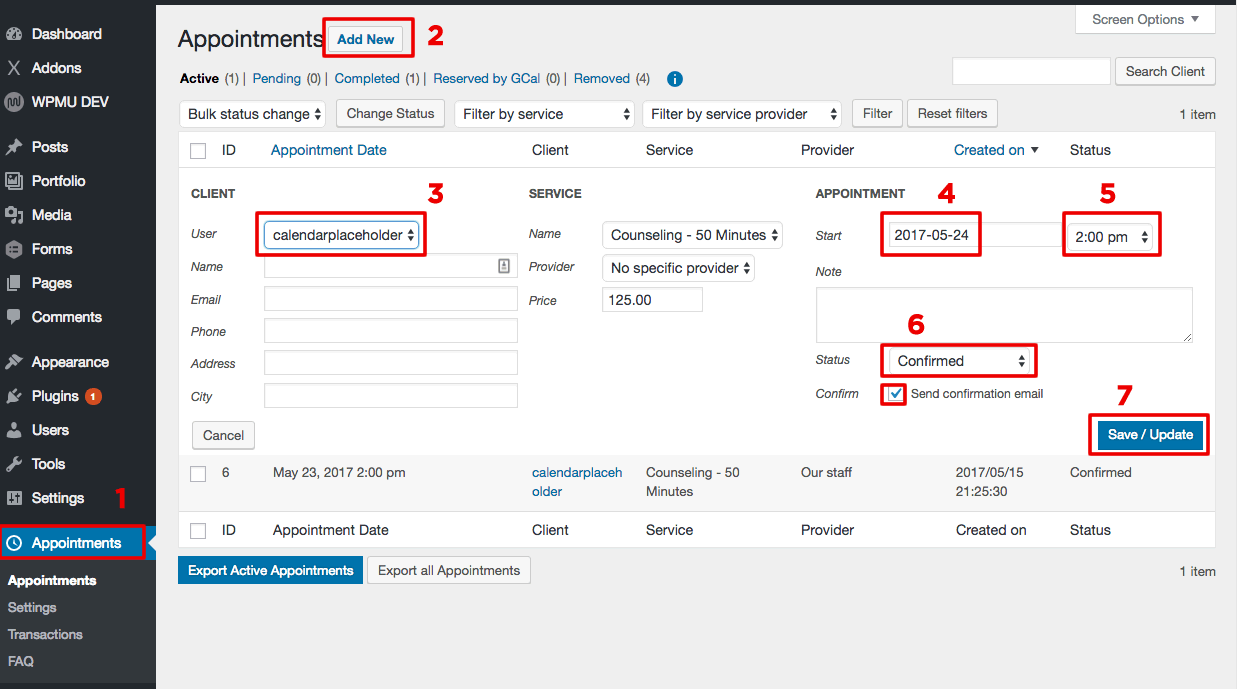
Click “Appointments”
Click “Add New”
Select “calendarplaceholder” or use your own profile name.
Tip: You can fill in your actual client details here if this is an appointment that is occurring but the client did not use your website calendar to schedule the appointment. e.g. You took the appointment over the phone.
Select Appointment “Start Date”
Select the TIME you want to block from your calendar
Select Status “Confirmed”
Click “Save/Update”
Repeat this for each time slot you need to block on each date.
Calendar-v2
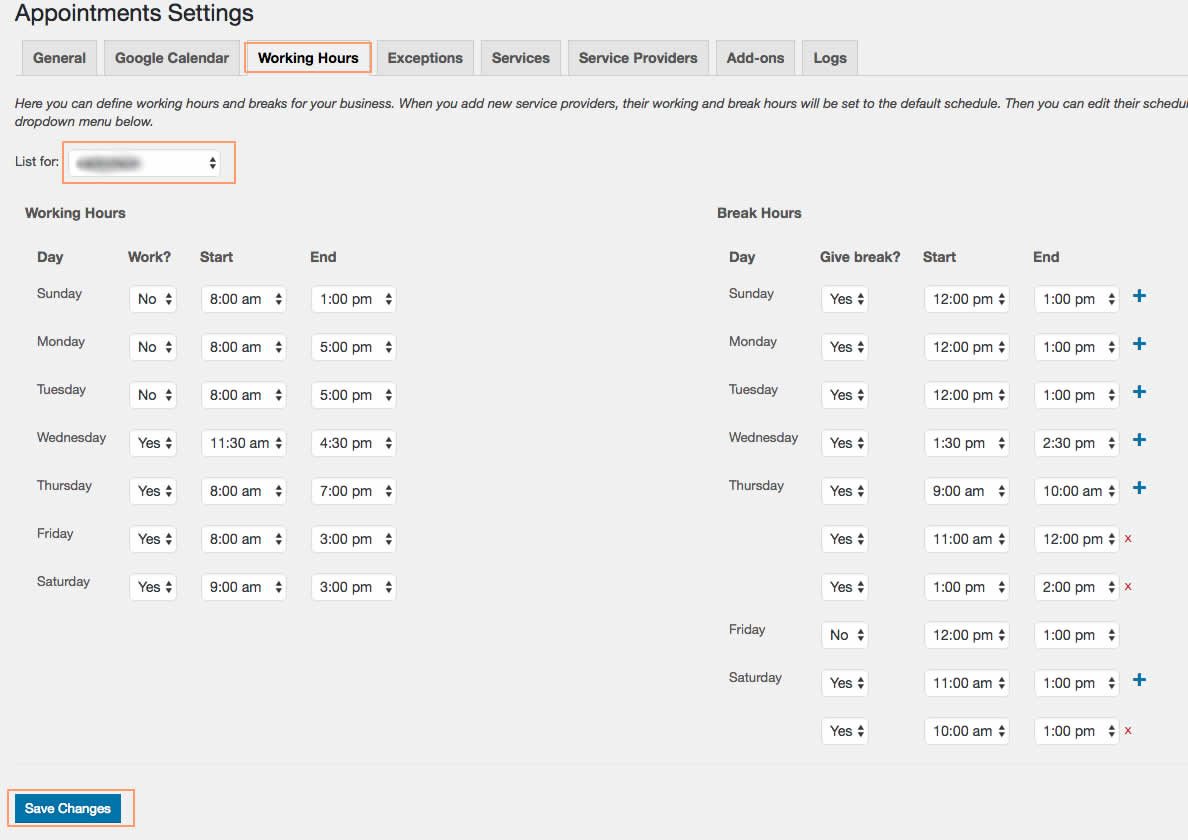
Changing Your Hours
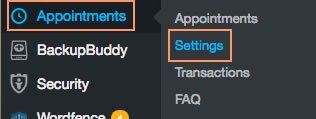
On the left, hover over Appointments
Then click settings
At the top, click Working Hours
From the drop down, select your name
Adjust the Working Hours and Break Hours as needed
At the bottom, click Save Changes
Calendar-v1
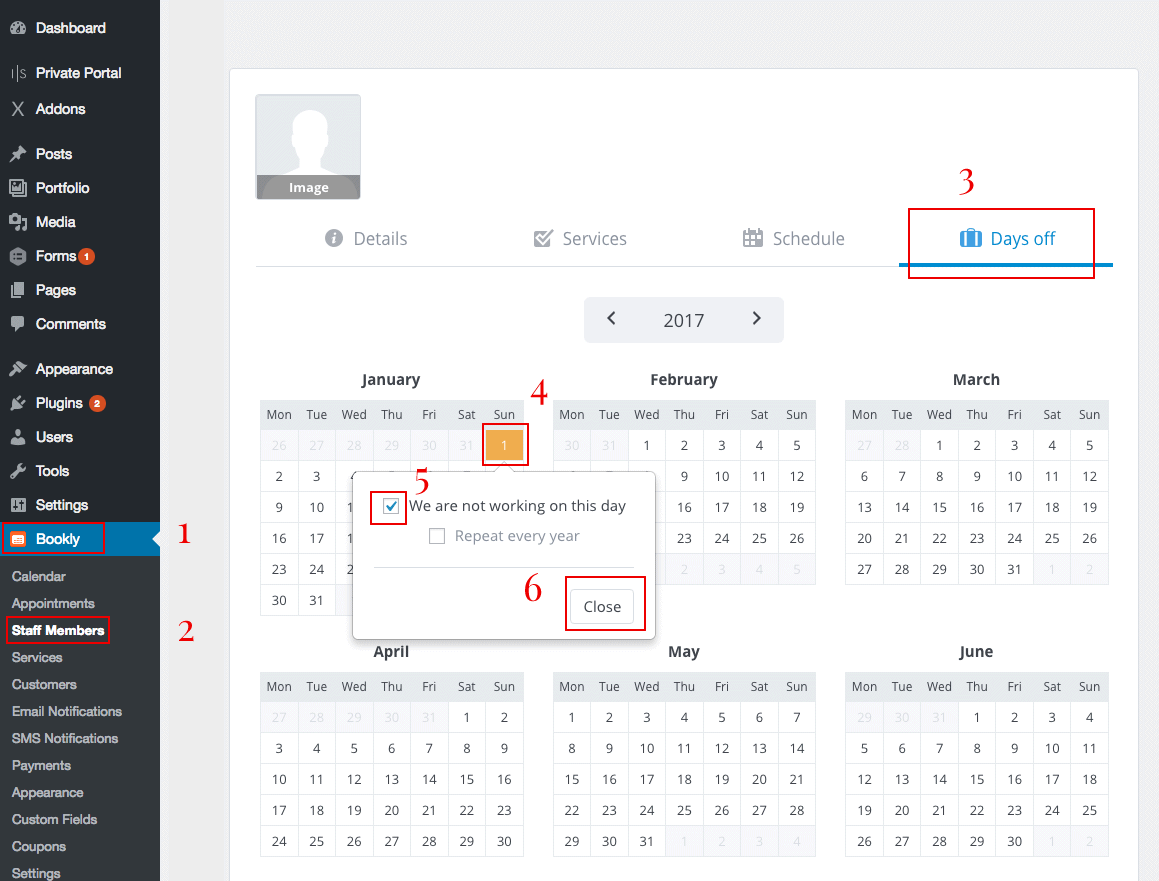
Blocking Dates
Click “Bookly”
Click “Staff Members”
Click “Days off”
Click the DATE you want to block from your calendar, it will turn a different color, check we are not working on this day, click close
Removing Blocked Dates
Return to the Days off screen
Click on the date that you previously “blocked” (which is in color) and this will toggle the date back to white.